Time buckets

Corefeed
A meta-modern* feed reader
* The classic feed reader, plus stuff like on-device AI summaries and podcast playback, without algorithms deciding what you see
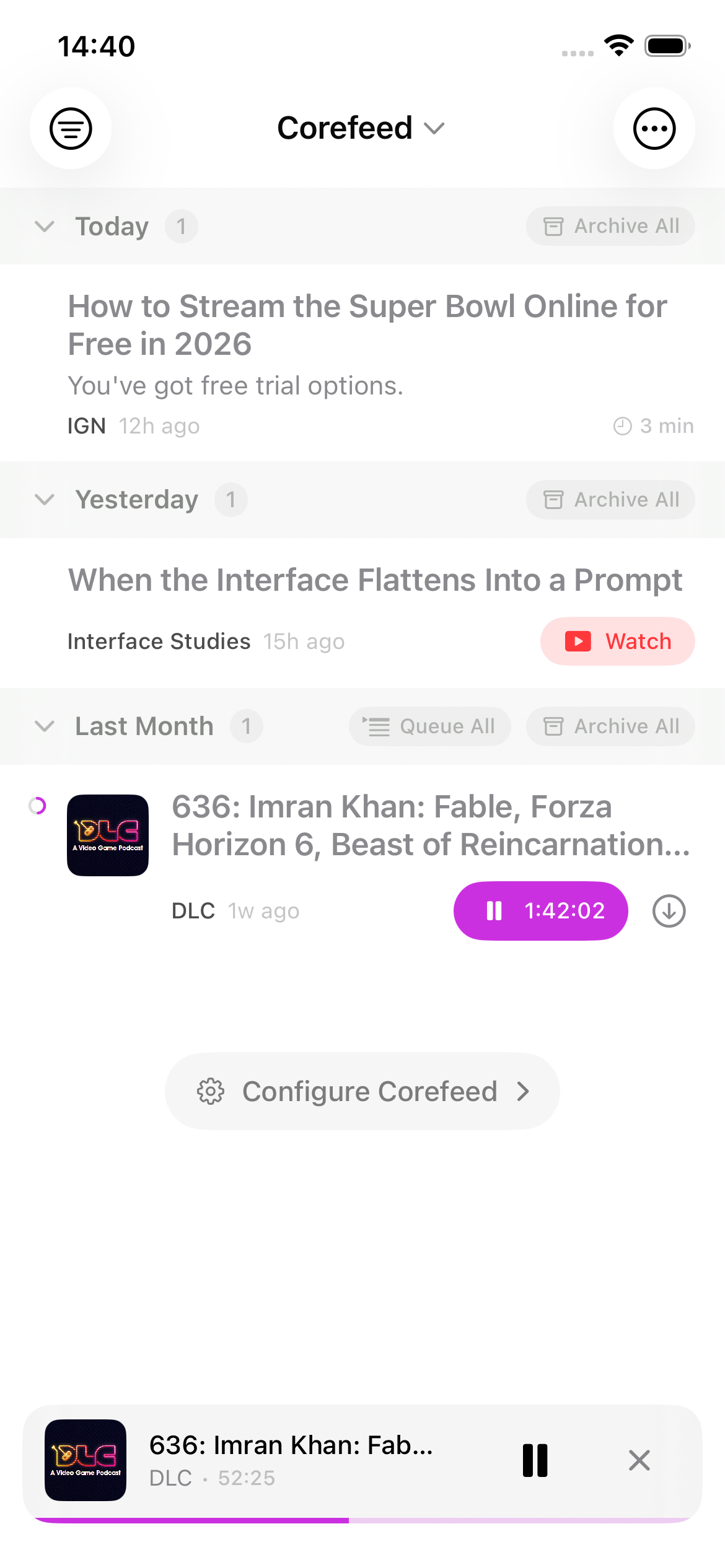
Corefeed is a feed reader for iOS. RSS feeds, podcasts, and YouTube channels go into the same timeline, grouped by hour, day, and week.
No ranking, no algorithm. You see what was published, in order. It also works with Mastodon and Bluesky feeds, reads on iPad, and everything stays on your device.
Feed
One timeline for everything
Blog posts, podcast episodes, and YouTube videos show up together, split into time buckets.Last Hour, Today, Yesterday, Last Week, and so on. Unread dots, reading time estimates, and "X min left" for articles you're partway through.
Swipe to star or archive. Hit "Read All" on a whole time bucket. Pull to refresh, or let background refresh run every 15, 30, or 60 minutes. Block specific words per feed if you don't want to see certain topics.
Reading
Full articles, not just snippets
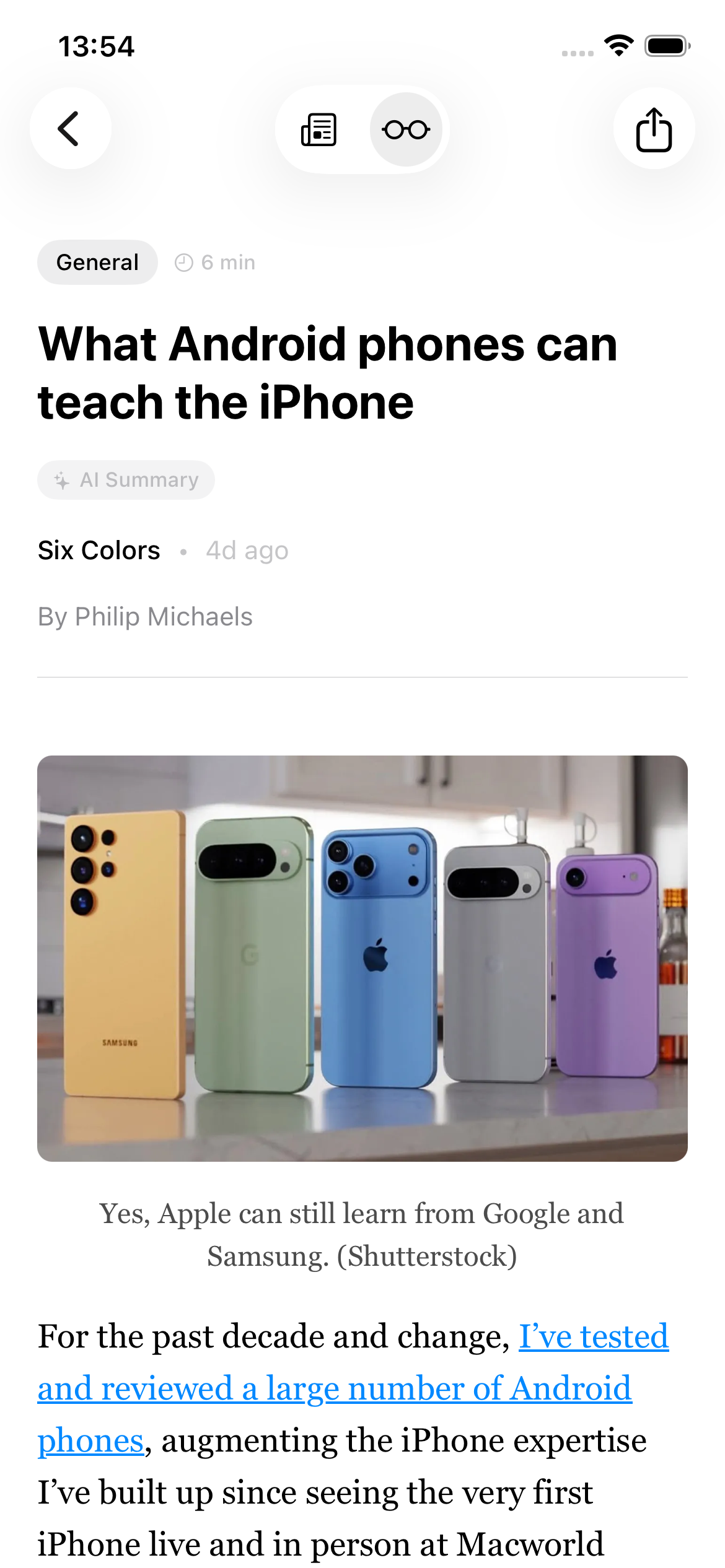
Most RSS feeds only include a summary. Corefeed can extract the full page content using Mozilla's Readability algorithm, strip the junk, and show you the actual article. Pick your font (Georgia, New York, Palatino, System, Times), size, line spacing, and density. RTL text works too.
If you'd rather read in Safari, there's a toggle for that. Your scroll position is saved per article, so you pick up where you left off.
Media
Podcasts and YouTube, same place
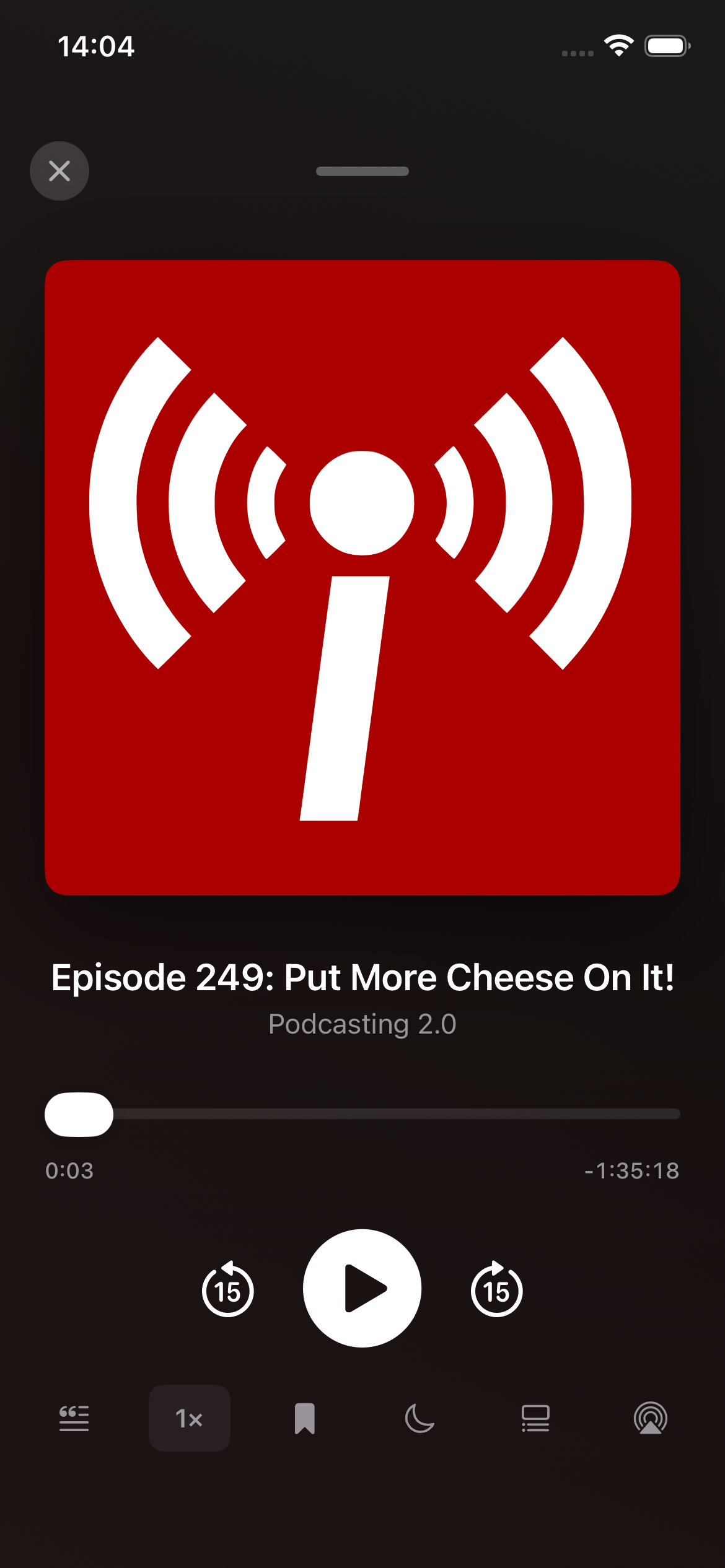
Subscribe to podcasts and YouTube channels as feeds. The podcast player floats at the bottom of the screen with playback speed (0.5x–3x), a sleep timer, chapter navigation, an Up Next queue, and lock screen controls. Podcasting 2.0 stuff like transcripts, persons, funding links, and soundbites all work.
Episodes download for offline listening and remember where you stopped. Video podcasts get their own player with Picture-in-Picture. YouTube videos play inline or open in the YouTube app, your choice.
Filters
Sources, groups, and tags
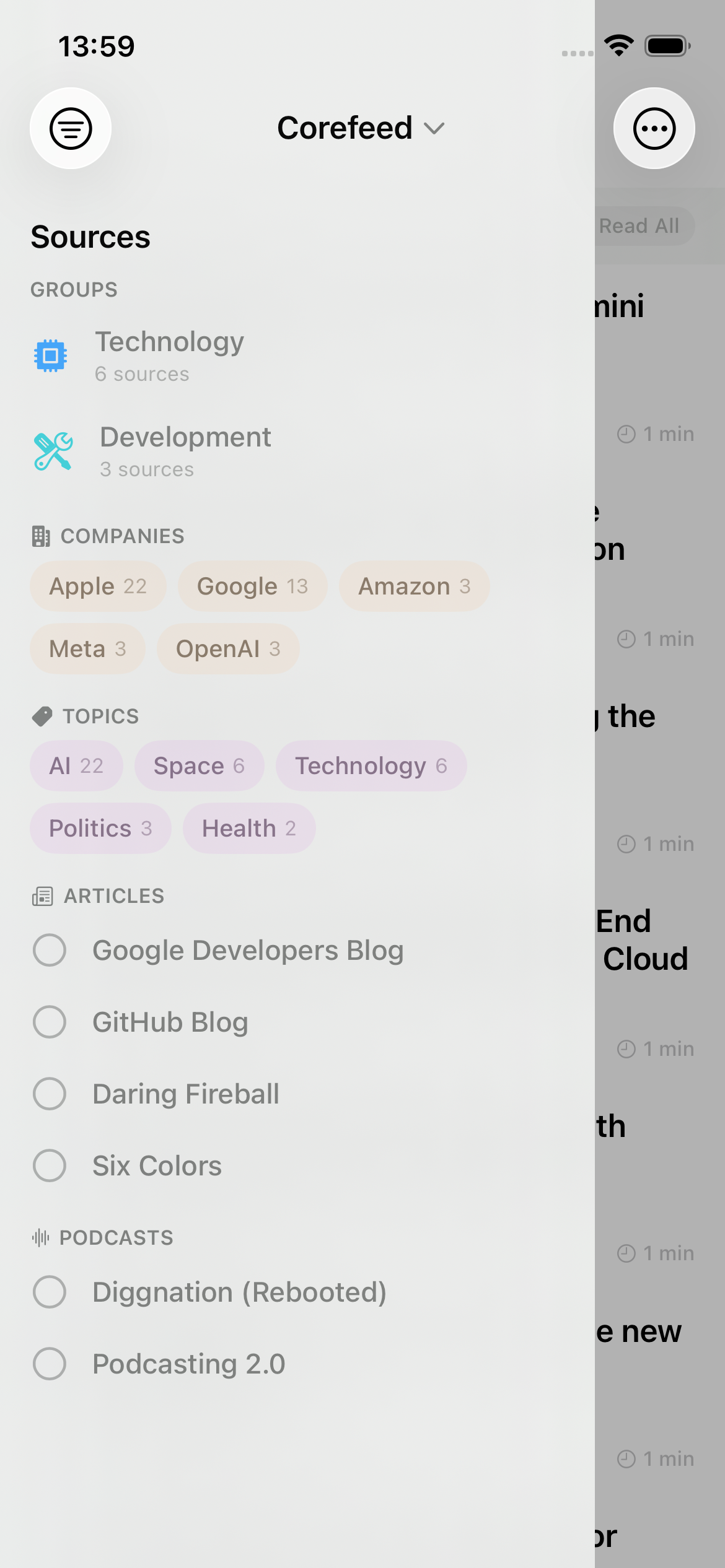
Swipe to open a sidebar with your sources, groups, starred items, archives, and unread counts. Filter by articles only, podcasts only, or everything at once. On devices with Apple Intelligence, articles get auto-tagged with people, places, companies, and topics you can filter by.
Groups let you bundle related feeds together, like a tech news site with a tech podcast. Pick an icon and a color, done. You can also set per-feed block words to hide articles with specific keywords.
Intelligence
On-device AI, if you want it
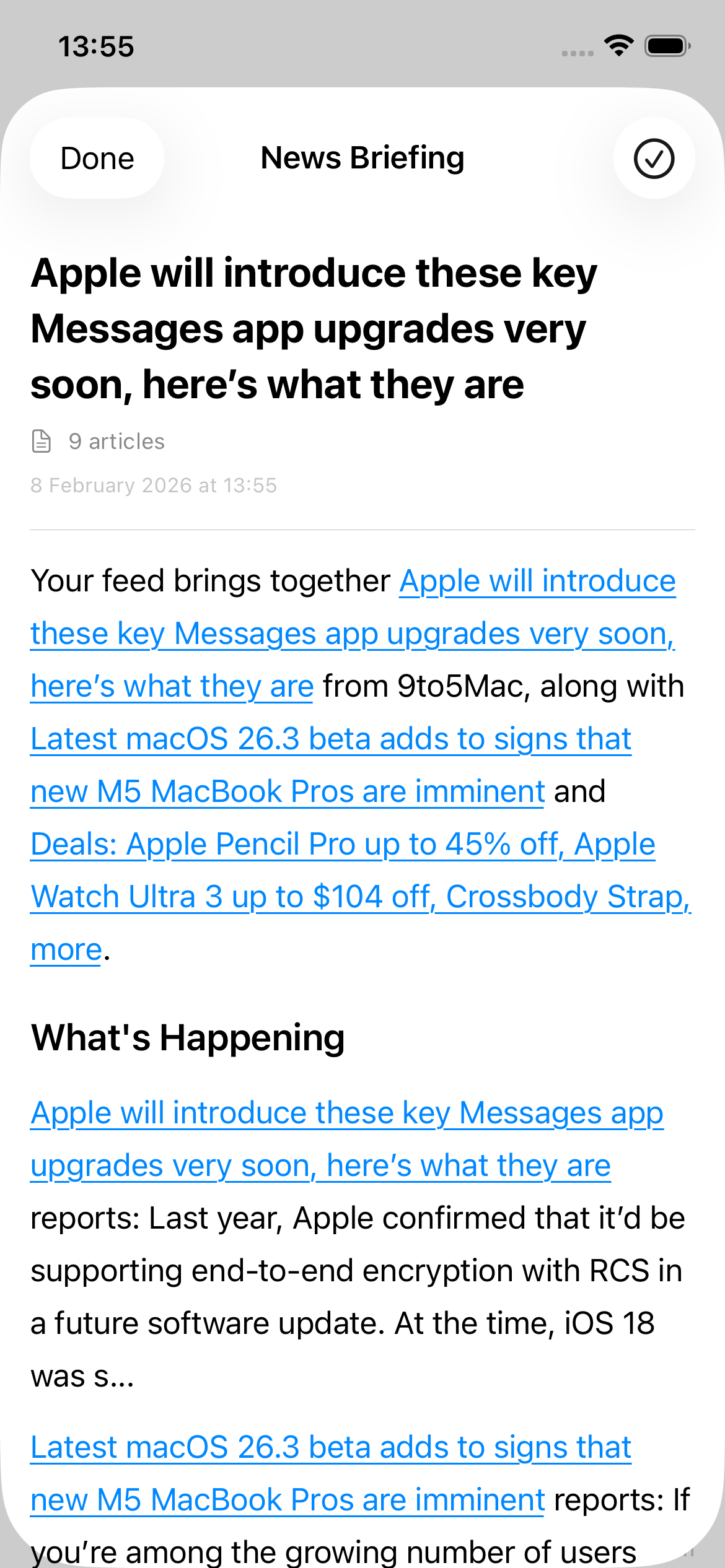
On devices that support Apple Intelligence, Corefeed can generate a digest card summarizing your recent articles, or expand it into a longer briefing that links back to the sources. Individual articles get AI summaries and topic tags. All of it runs on-device via Foundation Models—nothing leaves your phone.
Not interested? Toggle it off in settings and none of this shows up.
Offline
No account, no cloud
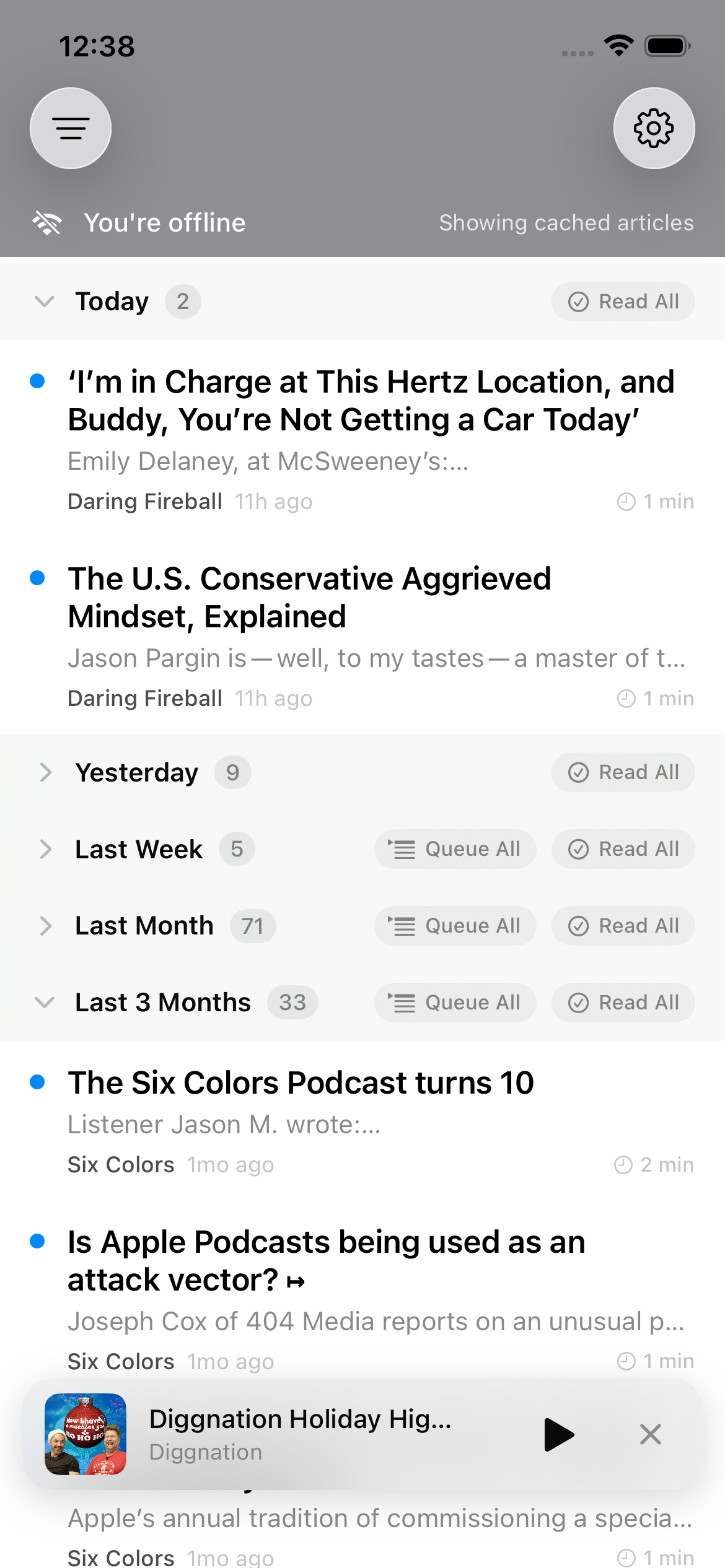
Articles are cached locally. Podcast episodes download to your device. When you lose connectivity, a small banner says so and you keep reading what's already there. No login, no server-side sync.
Import and export your feed list as OPML. Background refresh pulls new content on a schedule even when the app isn't open. Podcast artwork is cached alongside downloads so cover art still shows up offline.
Groups
Bundle feeds that go together
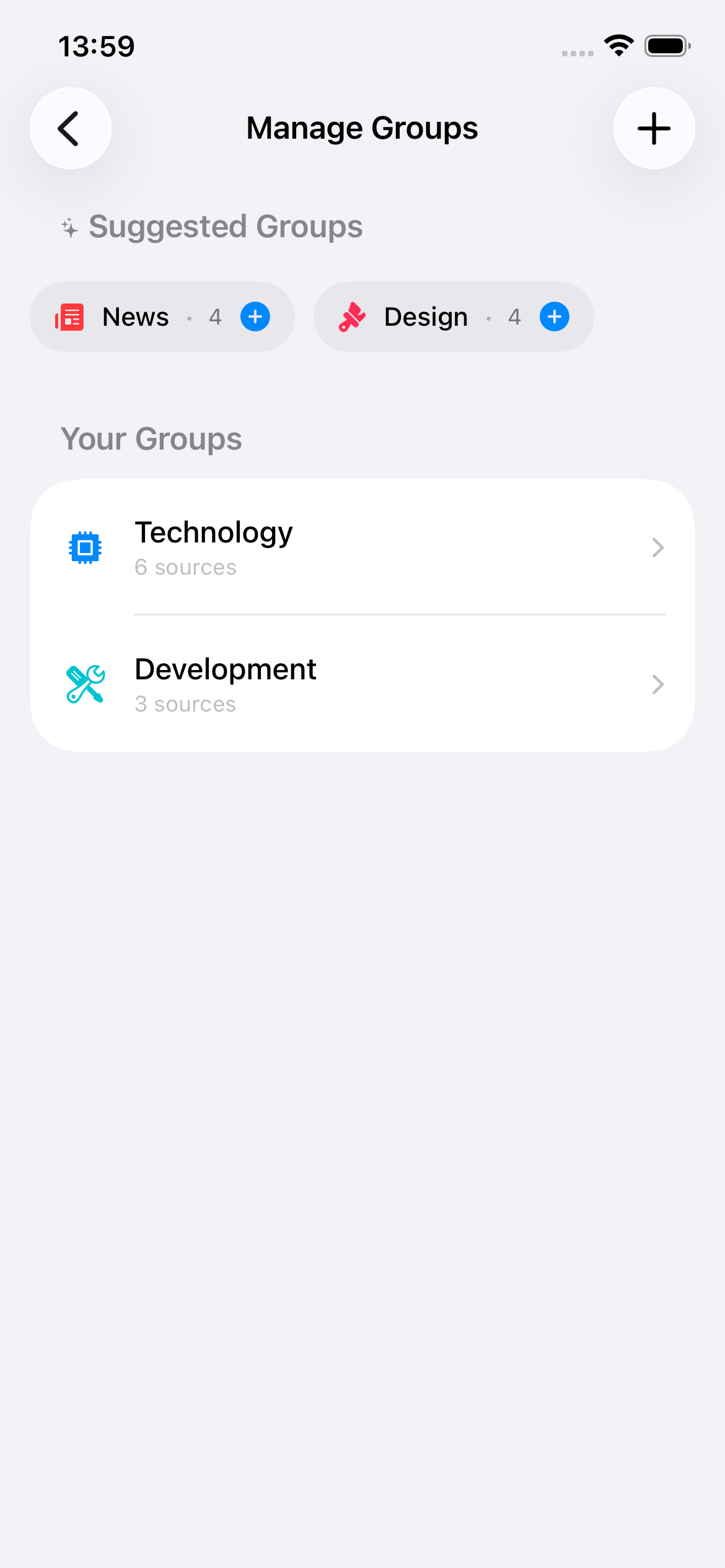
Create groups with a name, icon, and color. Drag feeds in. When you pick a group in the sidebar, you only see articles from those feeds. On devices with Apple Intelligence, the app can suggest groups based on your subscriptions.
Manage everything from settings—rename feeds, sort by name or recent activity, delete, or reorganize across Articles, Podcasts, and YouTube sections.
Settings
Configurable, not complicated
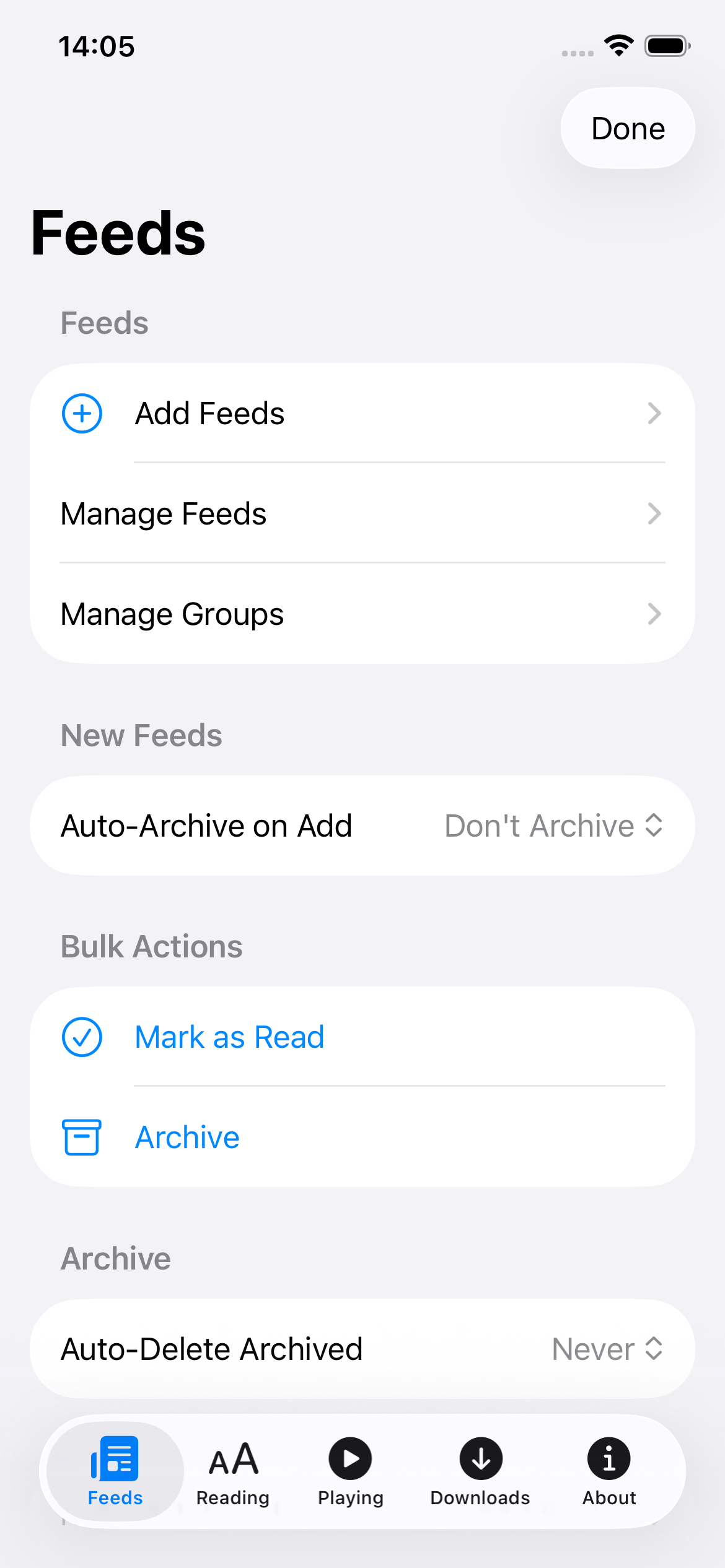
Settings are split into tabs: Feeds, Reading, Playing, Downloads, and About. Feed management, group management, notification toggles, auto-archive rules, and bulk actions (mark all read, archive all) live under Feeds.
Reading covers font, size, spacing, and display density. Playing covers playback speed defaults, auto-download, WiFi-only downloads, and whether to remove episodes after you finish them. Three display densities—compact, normal, expanded—for the article list.
Also worth knowing
Notifications
Per-source notification toggles. Set a refresh interval and get notified about new articles. Apple Intelligence can summarize multiple notifications into one.
Share extension
Tap share in Safari, pick Corefeed, and the feed URL gets added. Also supports corefeed://add-feed links and auto-paste from clipboard.
Continue listening
Partially-played episodes get their own horizontal row at the top of the feed. Position is saved, downloads are managed, and finished episodes can auto-delete.
Synced transcripts
For podcasts that provide them, transcripts scroll in sync with playback (like Apple Music lyrics). Tap any line to jump there.
AirPlay
Route podcast audio to AirPlay speakers or Bluetooth headphones from the player controls.
Home screen widget
An AI digest widget that shows a summary of your recent articles on your home screen.